Code
packages <- c(
          'tidyverse',
          'data.table',
          'arrow'

) 

The data.table is a powerful and widely used package in the R programming language. It provides an alternative to the default data.frame for handling tabular data. One of the primary reasons for its popularity is its exceptional performance, especially when dealing with large datasets. The package’s concise syntax is another benefit of using data.table. It allows for complex data manipulations and transformations with less code, making it a favorite among Data Scientists.

{Data.table} is one of the most downloaded packages in R. It’s well-liked by developers and analysts, who consider it one of the best things that has happened to the R programming language in terms of speed. The package’s syntax differs somewhat from the regular R data.frame. However, it is quite intuitive once you get the hang of it. This makes it easy to use and understand, and once you learn it, you may never want to revert to using the base R data.frame syntax. In summary, data.table is a powerful, fast, and intuitive package for managing tabular data in R. Its popularity among Data Scientists is a testament to its usefulness and efficiency. With data.table, you can write less code and achieve faster results, making it a go-to package for working with large datasets.
Here below data transformation with data.table:
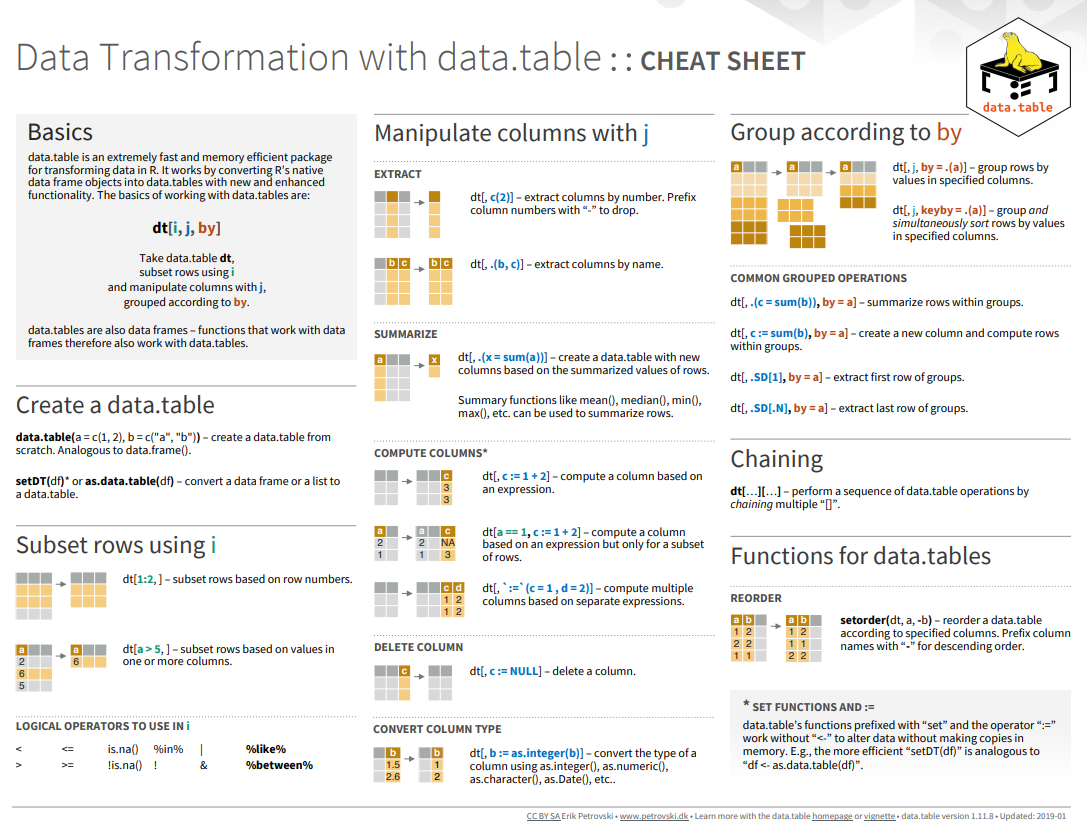
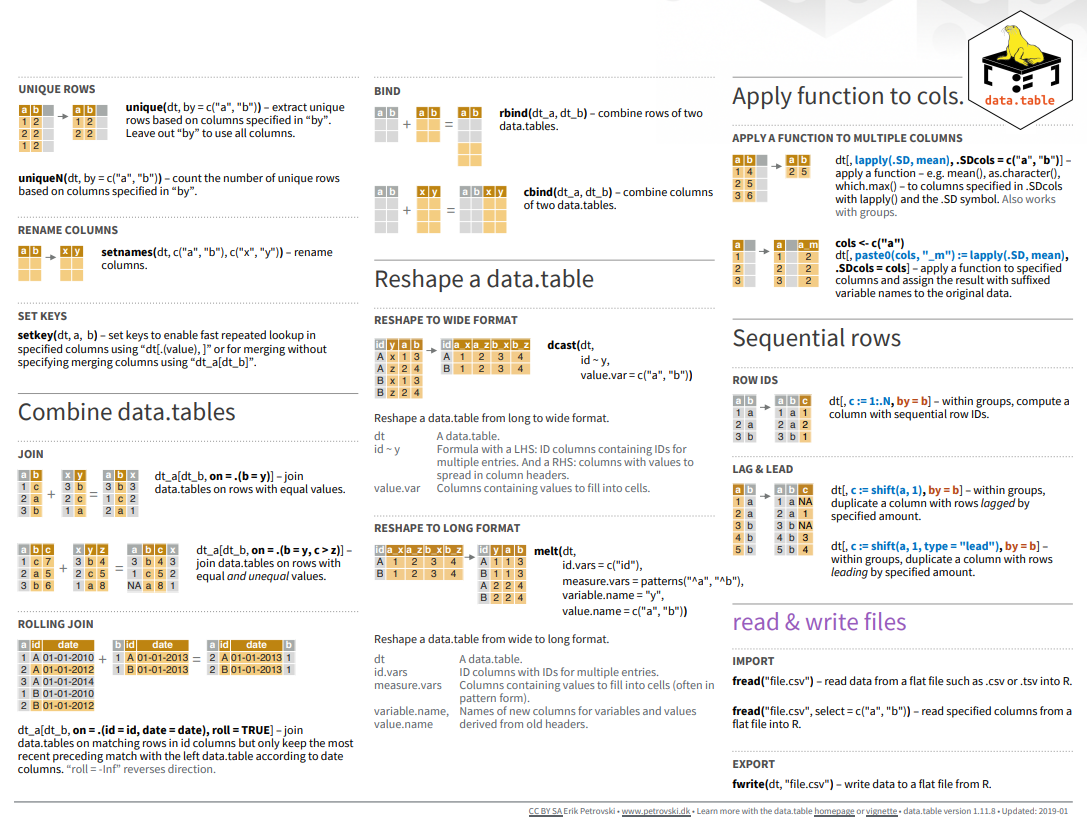
packages <- c(
'tidyverse',
'data.table',
'arrow'
) #| warning: false
#| error: false
# Install missing packages
new_packages <- packages[!(packages %in% installed.packages()[,"Package"])]
if(length(new_packages)) install.packages(new_packages)# Verify installation
cat("Installed packages:\n")Installed packages:print(sapply(packages, requireNamespace, quietly = TRUE)) tidyverse data.table arrow
TRUE TRUE TRUE # Load packages with suppressed messages
invisible(lapply(packages, function(pkg) {
suppressPackageStartupMessages(library(pkg, character.only = TRUE))
}))# Check loaded packages
cat("Successfully loaded packages:\n")Successfully loaded packages:print(search()[grepl("package:", search())]) [1] "package:arrow" "package:data.table" "package:lubridate"
[4] "package:forcats" "package:stringr" "package:dplyr"
[7] "package:purrr" "package:readr" "package:tidyr"
[10] "package:tibble" "package:ggplot2" "package:tidyverse"
[13] "package:stats" "package:graphics" "package:grDevices"
[16] "package:utils" "package:datasets" "package:methods"
[19] "package:base" The dataset is in Parquet format, which DuckDB can query directly without loading into memory. For reproducibility:
Download the January 2023 data from: https://d37ci07v2hxiua.cloudfront.net/trip-data/yellow_tripdata_2023-01.parquet (about 47 MB, ~3 million rows).
We saved it to a local folder, e.g., /home/zia207/Dropbox/WebSites/R_Website/Quarto_Projects/R_Beginner/Data/yellow_tripdata_2023-01.parquet.
We’ll also use the Taxi Zone Lookup CSV for joins: Download from https://s3.amazonaws.com/nyc-tlc/misc/taxi+_zone_lookup.csv.
The dataset includes columns like VendorID, tpep_pickup_datetime, tpep_dropoff_datetime, passenger_count, trip_distance, PULocationID, DOLocationID, fare_amount, total_amount, etc.
All data set use in this exercise can be downloaded from my Dropbox accounts.
We will use open_dataset() function of arrow package to import yellow_tripdata_2023.parquet as a lazy data. The open_dataset() function is used to read in a dataset from a specified file path or URL. It is particularly useful for working with large datasets that may not fit into memory all at once. The function returns a lazy dataset object that can be manipulated using dplyr-style syntax, allowing for efficient filtering, grouping, and summarization of the data without loading the entire dataset into memory. This makes it an ideal choice for working with big data in R.
dataFolder<-"/home/zia207/WebSites/R_Website/High_Performance_Computing_R/R_Markdown/Data/"
# Load January 2023 data
ds <- open_dataset(paste0(dataFolder, "yellow_tripdata_2023.parquet"))
# print(object.size(as.data.table(ds)), units = "GB") # 4.9 GB file sizeWe will use fread() function of data.table package to import taxi_zone_lookup.csv as a tidy data. When it comes to working with data.tables, it’s important to realize that the process is different from working with data.frames. Before diving in and using this package, it’s essential to understand the differences between the two. One of the most useful functions of data.table is fread(), which is a faster and more efficient version of read.csv(). It’s worth noting that fread() can work with local files on your computer, as well as files hosted on the internet. In fact, it’s been shown to be at least 20 times faster than read.csv(), which can be a huge advantage when dealing with large datasets. This dataset is stored as a csv file and can be easily imported using fread(). By using this function, you’ll be able to import the data quickly and efficiently into your R environment.
zones <- fread(paste0(dataFolder, "taxi_zone_lookup.csv")) |>
  glimpse()
Rows: 265
Columns: 4
$ LocationID <int> 1, 2, 3, 4, 5, 6, 7, 8, 9, 10, 11, 12, 13, 14, 15, 16, 17…
$ Borough <chr> "EWR", "Queens", "Bronx", "Manhattan", "Staten Island", "…
$ Zone <chr> "Newark Airport", "Jamaica Bay", "Allerton/Pelham Gardens…
$ service_zone <chr> "EWR", "Boro Zone", "Boro Zone", "Yellow Zone", "Boro Zon…When data is imported, it can be stored in various formats. In this case, the data is stored as a data.table. It is worth noting that a data.table is a type of data structure that inherits from the data.frame class. This means that the data.table itself can be considered a data.frame. By default, data.tables have some unique features that make them efficient when working with large datasets. For example, they have optimized memory usage and fast operations for querying and processing data.
You can use as.data.table() or setDT() to convert data.frame to data.table:
dt <- ds %>%
  # data for January 2023
  filter(tpep_pickup_datetime >= as.Date("2023-01-01") & tpep_pickup_datetime < as.Date("2023-02-01")) |>
  collect()  |>
as.data.table()# Check dataset size
print(object.size(dt), units = "GB")0.4 Gbdim(dt)[1] 3066726 19One of the key features of data.table is the ability to create a new column by assigning values to it within the square brackets. This can be done using the := operator, which allows you to assign a value to a column by reference.
# Feature Engineering
dt[, trip_duration := as.numeric(difftime(tpep_dropoff_datetime, tpep_pickup_datetime, units = "mins"))]
dt[trip_distance > 0, fare_per_mile := fare_amount / trip_distance]
dt[, pickup_hour := hour(tpep_pickup_datetime)]
dt[, time_of_day := fcase(
  pickup_hour >= 6 & pickup_hour < 12, "Morning",
  pickup_hour >= 12 & pickup_hour < 18, "Afternoon",
  pickup_hour >= 18 & pickup_hour < 22, "Evening",
  default = "Night"
)]
dt[, is_weekend := wday(as.Date(tpep_pickup_datetime)) %in% c(1, 7)]# Select: Specific columns
selected_dt <- dt[, .(tpep_pickup_datetime, passenger_count, trip_distance, fare_amount, PULocationID)]
names(selected_dt)[1] "tpep_pickup_datetime" "passenger_count" "trip_distance"
[4] "fare_amount" "PULocationID" # Join with zones
joined_dt <- dt[zones, on = .(PULocationID = LocationID), nomatch = 0]# Filter: Passenger count > 2 and trip_distance > 5
filtered_dt <- dt[passenger_count > 2 & trip_distance > 5]
cat("Number of filtered rows:", filtered_dt[, .N], "\n")Number of filtered rows: 40221 # Filter and Select: Manhattan trips with fare_amount > 20
manhattan_dt <- joined_dt[Borough == "Manhattan" & fare_amount > 20,
.(tpep_pickup_datetime, trip_distance, fare_amount, Borough)]
head(manhattan_dt) tpep_pickup_datetime trip_distance fare_amount Borough
<POSc> <num> <num> <char>
1: 2022-12-31 19:12:02 6.23 38.7 Manhattan
2: 2022-12-31 19:28:23 5.66 26.8 Manhattan
3: 2022-12-31 19:54:22 7.65 34.5 Manhattan
4: 2022-12-31 19:39:27 4.10 22.6 Manhattan
5: 2022-12-31 20:20:33 4.37 24.7 Manhattan
6: 2022-12-31 20:45:33 5.73 28.2 Manhattan# Filter and Aggregate: Long trips (>10 miles) by Borough
long_trips_dt <- joined_dt[trip_distance > 10,
.(avg_fare = mean(fare_amount, na.rm = TRUE),
trip_count = .N),
by = Borough]
head(long_trips_dt) Borough avg_fare trip_count
<char> <num> <int>
1: EWR 81.62581 31
2: Bronx 50.64914 818
3: Manhattan 61.91102 65249
4: Staten Island 62.36416 185
5: Queens 64.63434 167774
6: Brooklyn 53.81423 2173Data.table is a powerful package in R that offers an efficient and fast way to perform operations on large datasets. One of its main features is the ability to summarize data using various functions such as sum(), mean(), count(), and many others. To use these functions, you simply need to enclose them within square brackets ([ ]). This will allow you to summarize the data based on certain criteria or conditions, and quickly retrieve important information such as the total sum, average, or count of a specific column or group of columns. By utilizing data.table, you can easily analyze your data in a more efficient and streamlined manner.
# Mean of fare_amount
suppressWarnings(dt[, mean(fare_amount, na.rm = TRUE)])
[1] 18.36691# Median of fare_amount
suppressWarnings(dt[, median(fare_amount, na.rm = TRUE)])[1] 12.8For multiple variables:
In data.table, you can calculate the mean of multiple columns by specifying them within the j argument and using the lapply() function to apply the mean() function across those columns. Here’s an example:
# Mean of multiple columns
suppressWarnings(dt[, lapply(.SD, mean, na.rm = TRUE),
                    .SDcols = c("fare_amount", "trip_distance", "passenger_count")])
fare_amount trip_distance passenger_count
<num> <num> <num>
1: 18.36691 3.847351 1.362536Here, .SD refers to the Subset of Data and .SDcols specifies the columns on which the operation needs to be performed (in this case, columns “LBC_Rate”, “Smoking”, “PM25”). The lapply() function applies the mean() function across these selected columns to calculate their mean
You can compute both the mean and standard deviation of multiple columns simultaneously within a data.table in R.
# Summary statistics (mean and sd) for multiple columns
summary_stats <- suppressWarnings(dt[, lapply(.SD,
                                             function(x) c(mean = mean(x, na.rm = TRUE),
                                                           sd = sd(x, na.rm = TRUE))),
                                    .SDcols = c("fare_amount", "trip_distance", "passenger_count")])
print(summary_stats)
fare_amount trip_distance passenger_count
<num> <num> <num>
1: 18.36691 3.847351 1.3625359
2: 17.80755 249.585383 0.8961282In data.table, you can use the by argument to group your data based on one or more columns, and then calculate summary statistics for each group. This is useful when you want to perform calculations on subsets of your data.
# Group By: Total trips and average distance by Borough
borough_group_dt <- joined_dt[, .(total_trips = .N,
                                  avg_distance = mean(trip_distance, na.rm = TRUE)),
                              by = Borough]
print(borough_group_dt)
Borough total_trips avg_distance
<char> <int> <num>
1: EWR 408 1.602549
2: Queens 286635 12.320686
3: Bronx 4162 5.296593
4: Manhattan 2715344 2.883812
5: Staten Island 341 11.356774
6: Brooklyn 18075 5.677719
7: Unknown 41761 7.363166In data.table, all set() functions change their input by reference. That is, no copy is made at all, other than temporary working memory which is as large as one column. The only other data.table operator that modifies input by reference is :=.
Now we will organize DIVISION_FIPS, DIVISION_NAME, STATE_FIPS, STATE_NAME, DIVISION_NAME, YEAR, MT with setcolorder() function.
# Derive pickup_year from tpep_pickup_datetime

joined_dt[, pickup_year := year(tpep_pickup_datetime)]

# Reorder columns
suppressWarnings(setcolorder(joined_dt,
                             c("PULocationID",
                               "Borough",
                               "DOLocationID",
                               "Zone",
                               "pickup_year",
                               "fare_amount")))

# Display first few rows
head(dt)
VendorID tpep_pickup_datetime tpep_dropoff_datetime passenger_count
<int> <POSc> <POSc> <num>
1: 2 2022-12-31 19:32:10 2022-12-31 19:40:36 1
2: 2 2022-12-31 19:55:08 2022-12-31 20:01:27 1
3: 2 2022-12-31 19:25:04 2022-12-31 19:37:49 1
4: 1 2022-12-31 19:03:48 2022-12-31 19:13:25 0
5: 2 2022-12-31 19:10:29 2022-12-31 19:21:19 1
6: 2 2022-12-31 19:50:34 2022-12-31 20:02:52 1
trip_distance RatecodeID store_and_fwd_flag PULocationID DOLocationID
<num> <num> <char> <int> <int>
1: 0.97 1 N 161 141
2: 1.10 1 N 43 237
3: 2.51 1 N 48 238
4: 1.90 1 N 138 7
5: 1.43 1 N 107 79
6: 1.84 1 N 161 137
payment_type fare_amount extra mta_tax tip_amount tolls_amount
<int> <num> <num> <num> <num> <num>
1: 2 9.3 1.00 0.5 0.00 0
2: 1 7.9 1.00 0.5 4.00 0
3: 1 14.9 1.00 0.5 15.00 0
4: 1 12.1 7.25 0.5 0.00 0
5: 1 11.4 1.00 0.5 3.28 0
6: 1 12.8 1.00 0.5 10.00 0
improvement_surcharge total_amount congestion_surcharge airport_fee
<num> <num> <num> <num>
1: 1 14.30 2.5 0.00
2: 1 16.90 2.5 0.00
3: 1 34.90 2.5 0.00
4: 1 20.85 0.0 1.25
5: 1 19.68 2.5 0.00
6: 1 27.80 2.5 0.00
trip_duration fare_per_mile pickup_hour time_of_day is_weekend
<num> <num> <int> <char> <lgcl>
1: 8.433333 9.587629 19 Evening TRUE
2: 6.316667 7.181818 19 Evening TRUE
3: 12.750000 5.936255 19 Evening TRUE
4: 9.616667 6.368421 19 Evening TRUE
5: 10.833333 7.972028 19 Evening TRUE
6: 12.300000 6.956522 19 Evening TRUEsetnames() operates on data.table and data.frame not other types like list and vector. It can be used to change names by name with built-in checks and warnings
# Rename PULocationID to PICKUP_ZONE_ID
suppressWarnings(setnames(joined_dt, "PULocationID", "PICKUP_ZONE_ID"))The dcast() function is a highly efficient data reshaping tool provided by the data.table package. It is used for converting long-form data into wide-form data, and it can handle very large data sets with ease.
One of the main advantages of using dcast() is its speed and memory efficiency due to its optimized algorithms, the function is capable of handling large data sets in RAM without slowing down or causing memory issues. This makes it an excellent choice for data analysts and scientists who work with large-scale data.
Another advantage of dcast() is its ability to handle multiple value.var columns. This means that users can easily cast multiple columns of their dataset simultaneously, without having to perform multiple reshaping operations. Furthermore, the function supports multiple functions to fun.aggregate, which allows users to compute multiple summary statistics on their data at once.
Overall, dcast() is a powerful and efficient tool that can greatly simplify the data reshaping process for users working with large and complex data sets.
# Pivot 1: fare_amount by pickup_year and Borough (no aggregation)
suppressWarnings(
  joined_dt |>
    dcast(pickup_year ~ Borough,
          value.var = "fare_amount") |>
    glimpse()
)
Rows: 2
Columns: 8
$ pickup_year <int> 2022, 2023
$ Bronx <int> 34, 4128
$ Brooklyn <int> 862, 17213
$ EWR <int> 0, 408
$ Manhattan <int> 20602, 2694742
$ Queens <int> 832, 285803
$ `Staten Island` <int> 2, 339
$ Unknown <int> 306, 41455dcast() function supports multiple functions to fun.aggregate, which allows users to compute multiple summary statistics on their data at once.
# Pivot 2: Mean fare_amount by pickup_year and Borough
dt_wider <- suppressWarnings(
  dcast(joined_dt,
        pickup_year ~ Borough,
        fun.aggregate = mean,
        value.var = "fare_amount")
)
head(dt_wider)
Key: <pickup_year>
pickup_year Bronx Brooklyn EWR Manhattan Queens Staten Island
<int> <num> <num> <num> <num> <num> <num>
1: 2022 29.76265 27.19589 NaN 17.40432 39.34421 0.00000
2: 2023 30.24673 26.78900 87.8423 14.75521 50.01433 49.03062
Unknown
<num>
1: 25.11912
2: 29.15654In R’s data.table, it’s possible to transform wide data into long format using the melt() function. This function is useful for reshaping data when it’s needed to transform a dataset into a format that is more suitable for analysis or visualization. To use the melt() function, you first need to specify the data.table object that contains the data you want to reshape. Then, you need to set the variables that you want to retain as the id.vars argument, which will keep these variables in the reshaped dataset. Finally, you will need to specify the variables that you want to reshape as the measure.vars argument, which will be used to create the new variables in the reshaped dataset.
The melt() function can be used to pivot a data frame from a wide format to a long format.
# Create wide-format table: mean fare_amount by pickup_year and Borough
dt_wider <- suppressWarnings(
  dcast(joined_dt,
        pickup_year ~ Borough,
        fun.aggregate = mean,
        value.var = "fare_amount")
)

# Melt to long format
dt_longer <- dt_wider |>
  melt(id.vars = "pickup_year",
       value.name = "fare_amount",
       variable.name = "Borough")

# Display first few rows
head(dt_longer)
pickup_year Borough fare_amount
<int> <fctr> <num>
1: 2022 Bronx 29.76265
2: 2023 Bronx 30.24673
3: 2022 Brooklyn 27.19589
4: 2023 Brooklyn 26.78900
5: 2022 EWR NaN
6: 2023 EWR 87.84230# Example: Group by PULocationID and payment_type
group_dt <- dt[, .(avg_fare = mean(fare_amount, na.rm = TRUE),
trip_count = .N),
by = .(PULocationID, payment_type)]
print(group_dt) PULocationID payment_type avg_fare trip_count
<int> <int> <num> <int>
1: 161 2 14.39898 23141
2: 43 1 14.45221 39315
3: 48 1 15.31444 63247
4: 138 1 41.91978 74342
5: 107 1 14.16079 55904
---
1083: 3 0 46.11000 1
1084: 136 0 19.87500 2
1085: 235 0 39.94000 5
1086: 160 0 39.97000 1
1087: 250 0 50.36667 3# Visualize
ggplot(long_trips_dt, aes(x = Borough, y = avg_fare, fill = Borough)) +
geom_bar(stat = "identity") +
theme_minimal() +
labs(title = "Average Fare for Trips > 10 Miles by Borough (Jan 2023)",
x = "Borough", y = "Average Fare ($)")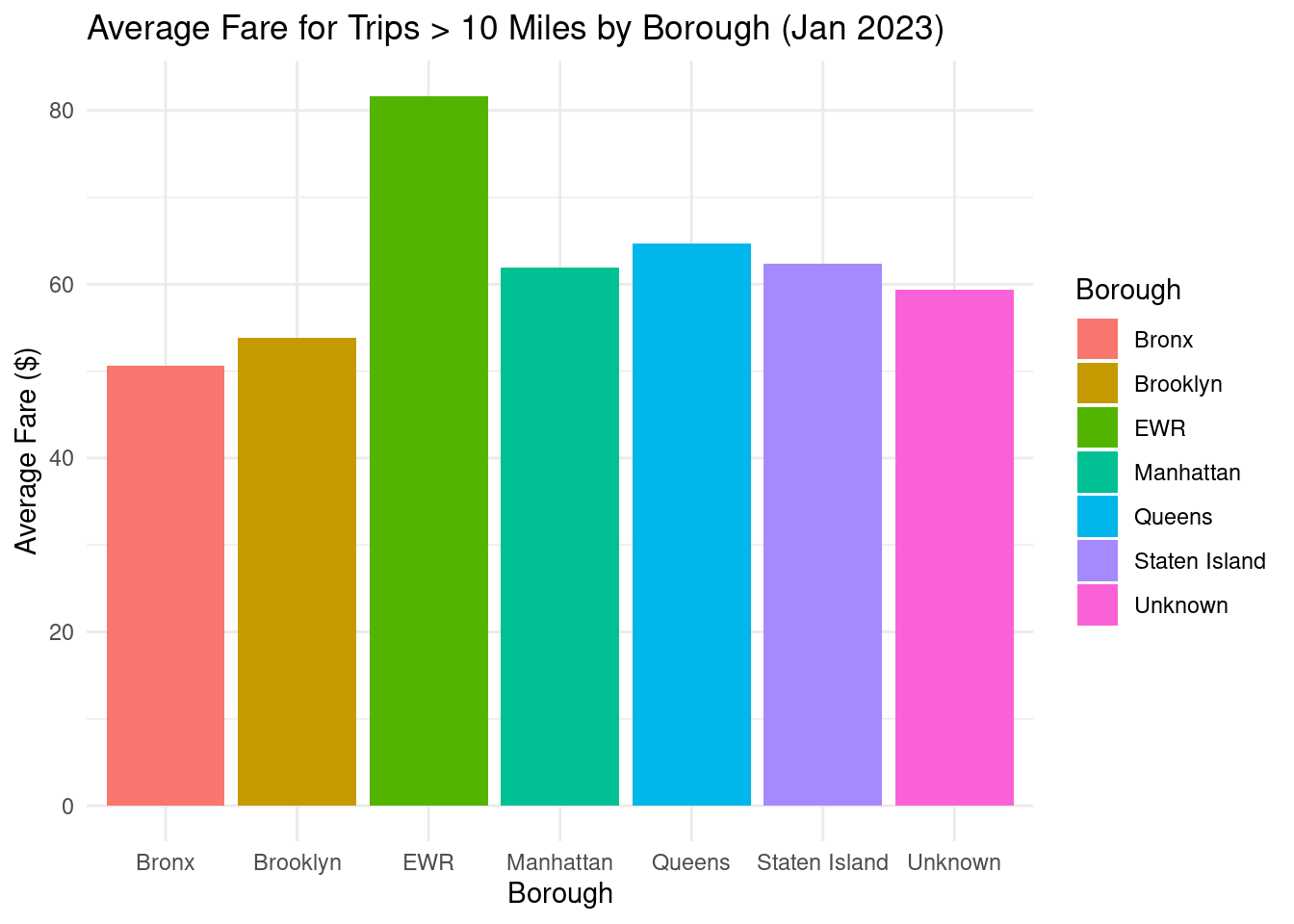
This tutorial explores data wrangling using the R package “data.table,” a powerful framework for managing large datasets. We will cover data filtering, column selection, grouping, and summarization. Advanced features include indexing, fast joins, and efficient data manipulation. With data. table, you can handle large datasets and complex operations. Practice with diverse datasets to streamline your workflows using the power of data.table.